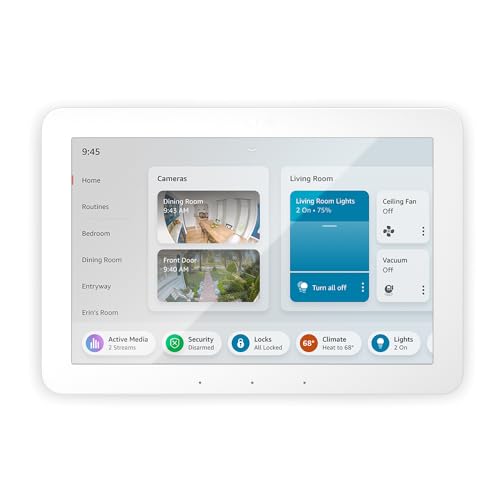
Google Nest devices come packed with a variety of features designed to enhance our homes and lives. One of the standout features is home automation. With Google Nest, you can control your lights, thermostats, and even security cameras all from your smartphone or through voice commands. Imagine walking into a dark room and simply saying, "Hey Google, turn on the lights," and watching it come to life in seconds!
Another fantastic feature of Google Nest is its integration with Google Assistant. This smart assistant is like having a personal helper at your fingertips. You can ask it for the weather, set reminders, or even check your calendar. The voice recognition is highly advanced, allowing it to understand various accents and phrases, making it user-friendly for everyone in the family.
Additionally, Google Nest devices provide enhanced security for your home. With features like video doorbells and indoor cameras, you can keep an eye on your property from anywhere. The mobile app sends real-time alerts and streams live footage right to your phone, ensuring that you’re always connected and in control. Plus, the facial recognition technology adds an extra layer of security by distinguishing between familiar faces and strangers.
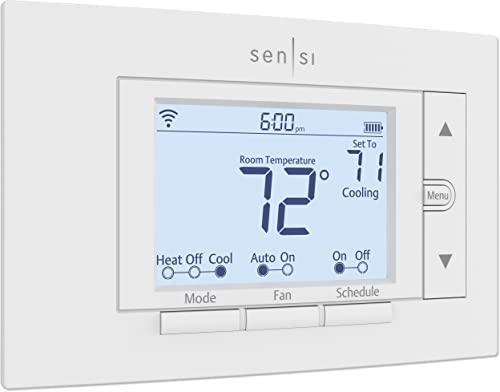
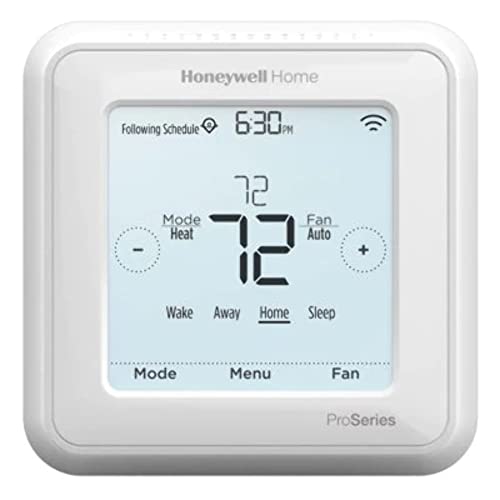
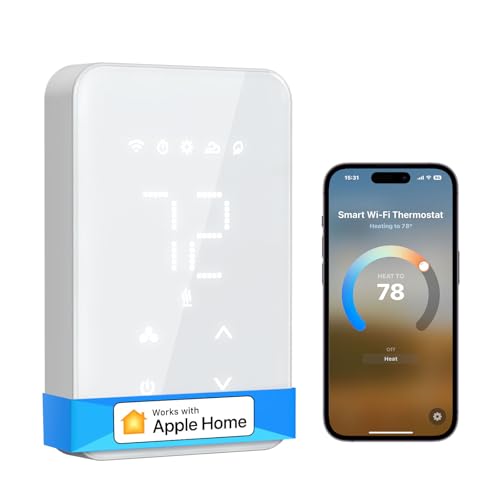
Lastly, energy management is a key feature of Google Nest products. The Nest Learning Thermostat learns your heating and cooling preferences over time and automatically adjusts to help you save energy and reduce bills. With a simple interface and insightful reports, it empowers you to make smarter decisions about your home energy use while keeping you comfortable all year round.
Setting Up Your Google Nest Device
Once you have the app ready, plug in your Google Nest device and turn it on. The app should automatically detect your device. If it doesn’t, you can tap the plus sign (+) in the app to add a new device manually. Follow the prompts on your screen, which typically involve scanning a QR code on the device or entering a code. You’ll also need to connect your device to your home Wi-Fi network, so have your Wi-Fi password handy.
After connecting to Wi-Fi, you can customize your settings. The app may ask you to select a location for the device, set the voice recognition feature, or adjust any other preferences. This is your chance to personalize your Google Nest experience, making it uniquely yours. Once everything is set up, your device will prompt you to complete a quick tutorial, showing you how to access various features such as voice commands, streaming music, and controlling smart home devices.
And just like that, you’re ready to explore the amazing possibilities of your Google Nest device! Whether you want to play music, set reminders, or control your smart home gadgets with just your voice, your setup process is designed to be user-friendly and intuitive. Enjoy the convenience and fun that comes with embracing the power of Google Nest in your everyday life!
Tips for Maximizing Nest Performance
Maximizing the performance of your Google Nest devices can greatly enhance your smart home experience. Here are some simple tips to help you get the most out of your Nest products. First, ensure that your devices are positioned correctly. For Nest Thermostats, place them away from direct sunlight, drafts, or heat sources to ensure accurate temperature readings and efficient functioning.
Next, regularly check your Wi-Fi connection. A weak signal can lead to slow response times and unreliable performance. Consider placing your router in a central location or using a Wi-Fi extender to improve coverage. Keeping your Nest devices updated with the latest software is crucial, as updates often include new features and bug fixes that enhance performance.
Take advantage of the Google Home app to customize your settings. Personalizing your device preferences allows you to maximize its functionality. For instance, setting schedules for your Thermostat can help save energy and keep your home comfortable. Additionally, using Routines can streamline your daily activities, automating multiple actions with a single voice command.
Lastly, don’t overlook the importance of voice commands. Familiarize yourself with the various commands for your Nest products to ensure you’re utilizing them fully. Experimenting with different commands can unlock features you might not have been aware of, making your smart home experience even more seamless.
Troubleshooting Common Nest Issues
When utilizing your Google Nest devices, you may encounter some common issues that can disrupt your experience. Whether it's connectivity problems or difficulties with voice commands, troubleshooting these issues can often be straightforward. Let's explore some solutions to help you get the most from your Google Nest devices.
One frequent issue is connectivity. If your Nest device isn't responding, the first step is to check your Wi-Fi connection. Ensure that your device is within range of your router and that your internet is functioning properly. You can try rebooting your router or moving your device closer to see if that resolves the issue. Additionally, restarting your Nest device can help reset the connection.
Another common problem involves voice commands not being recognized or executed properly. Make sure that the microphone is on—there's a button on the back of the device that might have been accidentally pressed. If it’s on but still not working, try repositioning your device. Sometimes, background noise can interfere with the microphone's ability to pick up your voice, so consider moving it to a quieter area or away from noisy appliances.
If you're facing issues with syncing smart home devices, ensure that your Google Nest is connected to the same Wi-Fi network as those devices. You may also need to check for updates in the Google Home app, as software updates can improve compatibility. If problems persist, unlinking and then relinking the devices in the app can often help as well.